7trade bot: introduction
This is the introductory article. After it you will understand what the bot is, what it consists of and in what order to work with it. Setting up strategies and indicators is covered in the next articles; here we only name things and show where everything is.
What the bot is
The bot is an add-on to your browser. There is no separate program and no separate window: you open the trading room you already use, and the bot appears right in it — as items in the top bar, a tab on the right and strips below the chart.
What it does:
- watches the chart — the same one you see;
- calculates indicators, including ones the platform does not have;
- finds candlestick patterns and frames them right on the chart;
- opens trades — but only by the rules you set;
- runs the martingale — adds a top-up after a lost trade, if you allowed it;
- counts the result — trades, wins, losses, winrate, total.
What the bot does not do
Better to know this right away, so you do not expect the impossible from it.
- It does not know the future. The bot calculates faster than you and never gets tired, but it does not predict prices.
- It does not think for you. The decision to enter is made by the rules you built. Until there are rules, the bot will not open a single trade.
- It does not close trades early — the platform does not allow this to anyone.
- It will not start trading by itself. While the lock in the settings is on, there will be no trades, even if everything else is turned on.
How it turns on
The extension is installed in the browser — nothing else needs to be launched. Open the trading room, and in a couple of seconds the bot's items appear in the platform's top bar.
If they are not there, reload the page. The bot embeds itself into a live page, and after a tab has been asleep for a long time it sometimes needs a fresh start.
First look: where everything is

The screenshots in this article show the bot in Russian; the items are in the same places in English.
In the platform's top bar, next to the balance:
| What | Why | |
|---|---|---|
| 1 | Dot | The bot's state. Click it to open the "Bot status" window with a list of what is or is not getting in the way right now. |
| 2 | Settings | The main window: stake, trade duration, trading lock, martingale. |
| 3 | Templates | Saved sets of indicators, so you do not have to place them again every time. |
| 4 | Indicators | The list of our indicators: what to turn on, what to show. |
| 5 | Strategies | The rules by which the bot enters a trade. |
| 6 | AI | The language model: whether to ask it before a trade and what to do with the answer. |
| 7 | Start / Stop | Starting and stopping trading. The item is pale and cannot be clicked while no strategy is running: the bot has nothing to trade by. While the trading lock is closed, the item is labelled "Trading off" — as in the picture. |
How to read the dot's colour:
- grey — still starting;
- green — working normally;
- yellow — not a failure, but working at reduced capacity;
- red — a failure.
On the right, in the platform's panel, a "Bot" tab is added — that is where the widgets live: candles, patterns, statistics.
What the bot draws right on the chart
These are not windows — they appear over the screen you are used to.
Strips below the chart. Each indicator you turn on gets its own strip. A strip has a gear (settings), a cross (remove), an arrow (collapse), and you can drag its bottom edge to change the height.
Strategy marks. While a strategy is running, the bot marks its decisions right on the chart and on all the strips below it:
- a vertical dotted line — the candle on whose close your strategy's entry fired. Bright and thick — the rule let it through: the confirmations agreed, and the bot would have entered here. Dim and thin — the entry fired, but a confirmation blocked it or the pause after the previous trade had not ended yet;
- an arrow under a bar — a bot trade: ▲ up, ▼ down. It stands on the bar where the trade opened, that is, the one after the signal: the bot decides on the candle's close.
A bright dotted line without an arrow means the rule fired but there was no trade. For example, the trading lock was closed or the asset's payout was below the threshold.
Both marks are turned on in the "Indicators" window, with two checkboxes at the very top: "Mark strategy signal (dotted line)" and "Mark bot entry (arrow)". There will be no dotted line while no strategy is running. It also appears only when the chart is open on the same timeframe the strategy runs on: on another one its decisions have nothing to attach to.
Lines over the candles. An indicator does not have to go into its own strip — it can be drawn right on the chart, and then it does not take height away from the chart. This works for indicators calculated in prices: channels, moving averages, trailing lines. Waves and percentages do not fit on the price scale — only a strip is available for them.
Frames around candlestick patterns. A found pattern is framed right on the chart. In the settings you choose whether to mark all found patterns, only the selected one, or none.
A line in the chart legend. Our indicators are labelled in the same place where the platform labels its own, with the same icons: an eye — hide the lines, a pencil — settings, a down arrow — return the indicator to a strip below the chart, a cross — remove it completely.
The "7trade" tab — in the platform's own indicator window, next to its "All" tab. Our indicators are turned on from there just like its own.
The "Stop martingale" button — under the buy and sell buttons. It is an emergency control: one click breaks the top-up chain — both yours and the bot's — including trades already in the market. It does not close open trades, does not stop trading (that is what "Stop" in the top bar is for) and does not turn the martingale off for the future: a trade opened after the click gets top-ups as usual.
The "Bot" panel on the right
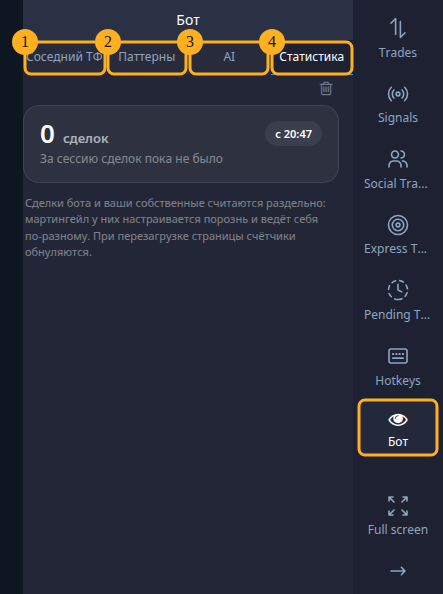
It opens with the "Bot" eye icon in the platform's right column. There are four tabs inside.
- "Neighbor TF" — large candles of a neighbouring timeframe. They help you catch the entry moment by hand: the last candle moves on every tick, and you can see how long until it closes.
- "Patterns" — candlestick patterns: which to track and which are forming now.
- "AI" — what the language model answered about the current asset.
- "Statistics" — the session result: "Trades", "Wins", "Losses", "Draws", "Winrate", "Total", broken down by asset and by martingale. The bot's trades and your own are counted separately.
The bot's windows
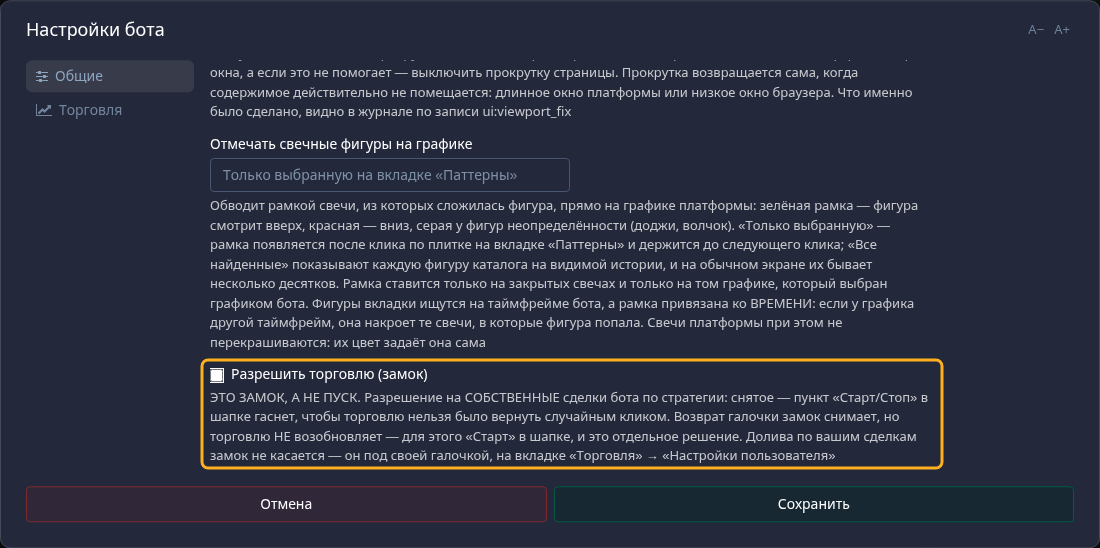
"Bot settings" — two sections. "General" covers the whole extension: which chart the bot works with, the minimum asset payout, whether to mark candlestick patterns and, most importantly, "Allow trading (lock)". It really is a lock, not a start button: while the checkbox is off, the bot will not open its own trades, whatever is configured further on. Tick it — the lock is off, but trading has not started: "Start" in the top bar starts it, and that is a separate decision.
The "Trading" section has two tabs. "Bot settings" — the stake, how many trades to hold at once, the timeframe, the trade duration and the whole martingale ladder. "User settings" — the same, but for top-ups on your trades opened by hand.
Almost every field has a hint — hover over it, it says the same thing in more detail.
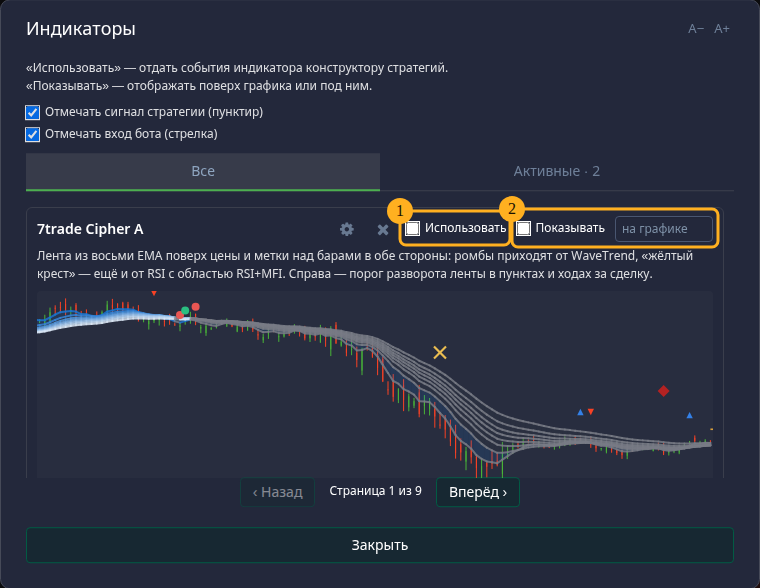
"Indicators" — the list of our indicators as cards, with a live preview. Each has two checkboxes, and they are different things:
- "Use" — give the indicator to strategy rules. Nothing appears on the screen because of this;
- "Show" — draw it. Next to it you choose the place: its own strip below the chart or right over the candles.
It makes sense to show two or three: the chart does not shrink below a minimum, and the strips simply stop fitting. The "Active" tab answers the question "what is working right now".
"Strategies" — the list of entry rules. Here a strategy is created, started, stopped and deleted; the running one is marked "running". Inside, in the "Strategy rules" window, the rule itself is built: an entry event and confirmations for it.
"Indicator templates" — a set of indicators saved under a name. Apply it — the indicators are added to those already on the chart.
"AI" — three tabs: "Prompts", "Connection" and "Mode". The main thing here is the mode: "Only show decisions" or "Open trades". It is worth starting with the first one.
"My patterns" — a builder for your own candlestick patterns. It has no item of its own in the top bar: it opens from the "Patterns" tab and from the strategy rules window.
How to work
- Turn on indicators — the "Indicators" window, the "Use" and "Show" checkboxes.
- Set the rules — the "Strategies" window: which event to enter on and what confirms it.
- Set the stake and trade duration — "Settings" → "Trading" → "Bot settings".
- Watch without trading. Start the strategy but keep the lock closed. There will be no trades, but the bright dotted line on the chart shows where the bot would have entered. The preview in the "Strategy rules" window shows the same on history. This is the cheapest way to check rules.
- Open the lock and click "Start".
- Watch "Statistics" — the "Bot" tab on the right.
Do not skip step 4: a rule that sounds reasonable in words often fires either once a day or on every other candle, and you only see this on the chart.
FAQ
The bot is running, but there are no trades. Check in order: is the "Allow trading" lock open, is a running strategy selected, has the asset payout dropped below the "Minimum payout, %" threshold. Click the status dot — the window will name the reason.
I turned on an indicator, but nothing appeared on the screen. Only "Use" is ticked. This checkbox gives the indicator to the rules; "Show" draws it.
I want to move an indicator onto the chart, but there is no choice of place. Then its values are not prices (waves, percentages, a strength index), and they do not belong on the price scale. Only its own strip is available for such an indicator.
I clicked "Stop martingale", but the open trade stayed. That is by design: the platform does not let you close trades early. The button breaks the continuation of the chain — there will be no top-ups after this trade.
Can I cancel a bot trade? No. That is exactly why step 4 exists — a run with the lock closed.
What next
- "Working with the bot" — in detail: settings, martingale, statistics, what to do in case of failures.
- "Working with indicators" — our indicators one by one, their events and how rules are built from them.